

You want to try a new operating system. Maybe you need to run an old Windows app, or test Linux before you commit to it. Doing any of this on your main computer is risky. One bad install can break your settings or even your files.
That is a real problem, because most people only find out the risk after something goes wrong. A safe testing space saves time, money, and stress.
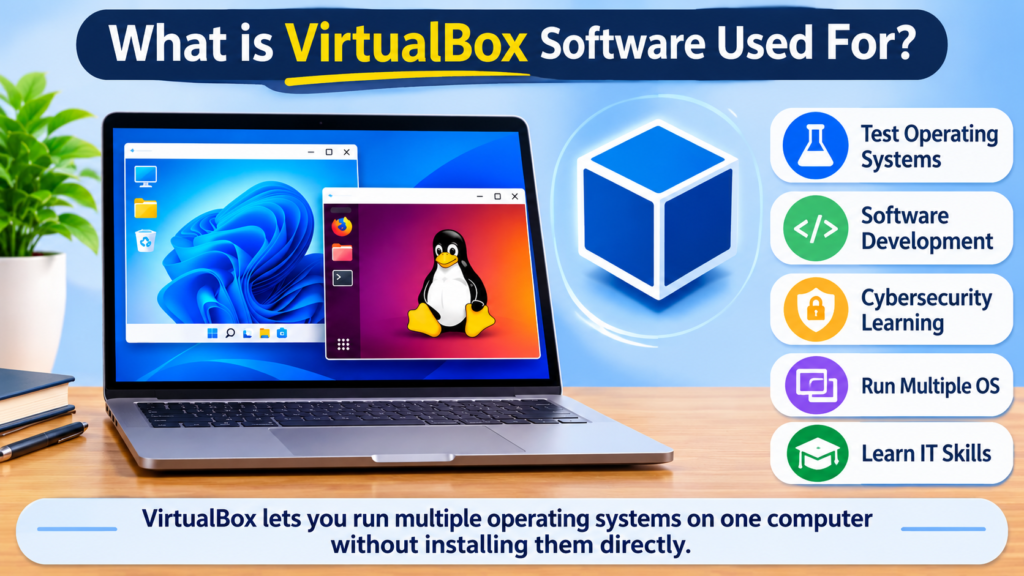
VBox software, officially called Oracle VM VirtualBox, is a free, open-source program that lets you run one operating system inside another. It creates a virtual computer, called a virtual machine, on your existing PC or Mac. You can install Windows, Linux, or other systems in it, test apps safely, and delete everything later without touching your real files.
In this guide, you will learn what it does, what you need, how to set it up, and where it falls short.
summary
- VirtualBox is a free hypervisor from Oracle that runs virtual machines.
- It works on Windows, Linux, and macOS.
- It is great for learning, testing, and running old software.
- It is slower than a real computer, and Apple Silicon Macs have limits.
- The core program is free. The optional Extension Pack has license rules.
How VirtualBox Actually Works
Think of your computer as a house. Normally, you live in the whole house. A virtual machine is like building a separate, sealed apartment inside it. What happens in the apartment stays in the apartment.
Here are the terms you will see:
- Host: your real computer and its operating system.
- Guest OS: the system running inside the virtual machine.
- Hypervisor: the software that creates and manages virtual machines. VirtualBox is a “Type 2” hypervisor, which means it runs as a normal app on top of your host system.
- Virtual disk: a single large file that acts as the hard drive for your virtual machine.
When you start a virtual machine, VirtualBox gives it a slice of your RAM, CPU cores, and storage. The guest thinks it is on a real computer. Close the window, and the slice goes back to your host.
What People Use It For
Here are practical examples:
Learning Linux. A college student in Ohio wants to learn Ubuntu for a class. She installs it in a virtual machine and keeps her Windows laptop untouched. If she breaks something, she deletes the machine and starts over in ten minutes.
Testing websites. A freelance developer in Austin checks how a client’s site looks on Windows 11 and Ubuntu. He runs both as guests on one Mac, with no extra hardware.
Running old software. A small accounting office in Denver still uses a tax program built for Windows 10. Instead of keeping an old PC, they run it in a virtual machine.
Safe experiments. IT beginners try risky settings, scripts, or unknown files inside a VM. If something goes wrong, they restore a saved state.
For hobbyists, students, and developers, vbox software is often the easiest way to get started with virtualization because it costs nothing and runs almost everywhere.
System Requirements
Check your computer before you download anything. Virtual machines need real resources.
| Component | Minimum that works | Comfortable setup |
|---|---|---|
| RAM | 8 GB total | 16 GB or more |
| CPU | 64-bit with virtualization support | 4+ cores |
| Free storage | 30 GB | 100 GB or more (SSD preferred) |
| Host OS | Windows, Linux, or macOS | Latest stable release |
Two quick checks matter most.
1. Virtualization must be on. Most modern PCs support it, but it is sometimes turned off in the BIOS or UEFI. Look for “Intel VT-x,” “AMD-V,” or “SVM Mode.” If it is off, your virtual machine may refuse to start or run very slowly.
2. Leave RAM for your host. If you have 8 GB, give your virtual machine 2–4 GB at most. Giving it too much makes both systems crawl.
Before you download vbox software, always get it from the official VirtualBox website. Third-party download sites sometimes bundle junk.
How to Install and Create Your First Virtual Machine
The steps are similar on every system. Here is the simple version.
- Download VirtualBox from the official site. Pick the package for your host OS.
- Run the installer. Accept the defaults. On Windows, a brief network disconnect during install is normal.
- Get an ISO file. This is the installation disc image for your guest OS. Ubuntu, for example, offers free ISOs. Windows 11 ISOs are available from Microsoft.
- Click “New.” Name your machine, choose the ISO, and pick the OS type.
- Set resources. Try 4 GB RAM, 2 CPU cores, and a 40 GB virtual disk for a Linux guest. Windows 11 usually wants at least 4 GB RAM and 64 GB of disk.
- Start the machine and follow the guest OS installer, just like on a real PC.
The whole process takes about 20 to 40 minutes, depending on your internet speed and hardware.
Windows 11 Note
Windows 11 expects features like TPM 2.0 and Secure Boot. Recent VirtualBox 7.x versions support these, so installing Windows 11 as a guest is much easier than it used to be. Still, read the current setup notes before you begin, because options differ by version.
Features Worth Learning Early
Guest Additions. After installing your guest OS, install Guest Additions from the Devices menu. This improves screen resolution, mouse movement, and lets you copy and paste between host and guest. Without it, the guest feels clunky.
Snapshots. A snapshot saves the exact state of your machine. Before you try something risky, take one. If it fails, roll back in seconds. This is the most useful feature for beginners.
Shared folders. Share a folder between host and guest to move files easily. You do not need USB drives or email.
Networking modes. The default, NAT, lets your guest reach the internet safely. Bridged mode gives the guest its own address on your local network, which is useful for testing servers.
Cloning. Duplicate a working machine to create test copies. A developer can build one clean Ubuntu setup and clone it for each new project.
Honest Pros and Cons
What works well:
- Free for personal use, with an open-source core
- Runs on all major host systems
- Easy snapshots and cloning
- Large community and plenty of tutorials
- Good enough for learning, testing, and light daily use
What does not:
- Graphics performance is weaker than rivals, so gaming and heavy 3D work are poor choices
- Virtual machines use real RAM and storage, so older laptops struggle
- Some features need the Extension Pack, which has separate license terms
- On Apple Silicon Macs, VirtualBox only runs Arm-based guests, so you cannot run regular Windows 11 for Intel/AMD chips
That last point surprises many Mac users. If you have an M-series Mac and want Windows, tools like Parallels or VMware Fusion are usually easier. The biggest limit of vbox software today is that Apple Silicon support is still limited compared with its Windows and Linux hosts.
Licensing: What Is Actually Free?
The base VirtualBox program is open source under the GPL, so it is free to download and use.
The Extension Pack is different. It adds features like USB 2.0/3.0 support, disk encryption, and remote desktop. It is free for personal use, education, and evaluation, but companies using it commercially typically need a paid license from Oracle.
This is where many top-ranking articles stay vague. If you use VirtualBox at work, check Oracle’s current license terms on the official site or ask your IT or legal team. Terms can change, so do not rely on old blog posts, including this one, without checking.
VirtualBox vs. Other Options
How does it compare with the other popular tools?
| Tool | Cost | Best for | Main drawback |
|---|---|---|---|
| VirtualBox | Free (core) | Learning, testing, cross-platform use | Weaker graphics performance |
| VMware Workstation / Fusion | Check current pricing | Smoother performance, polished tools | Licensing has changed more than once |
| Hyper-V | Built into Windows Pro | Windows-only users wanting native speed | Not on Windows Home; Windows hosts only |
For most beginners, the real question is simple. If you are on Windows or Linux and want a free, flexible option, vbox software is a strong first choice. If you are on a new Mac or need top graphics speed, look elsewhere.
Performance Tips That Make a Real Difference
A slow virtual machine usually has a simple cause. Try these fixes in order:
- Turn on hardware virtualization in the BIOS.
- Install Guest Additions inside the guest.
- Use an SSD for your virtual disk if you can. This is the biggest speed boost on older machines.
- Give the guest 2 or more CPU cores, but not all of them.
- Increase video memory in the machine’s display settings.
- Close heavy host apps like browsers with 40 tabs.
- Avoid running other hypervisors at the same time. On Windows, features like Hyper-V can conflict and slow things down.
Common Mistakes to Avoid
- Making the disk too small. Resizing later is possible but annoying. Start with at least 40 GB for Linux and 64 GB for Windows.
- Skipping snapshots. People lose hours of work they could have saved with one click.
- Assuming a VM is a perfect shield. Virtual machines are isolated, but not unbreakable. Researchers have found rare escape bugs in all hypervisors. Treat a VM as a safe test space, not a replacement for antivirus or good habits. Used the right way, vbox software greatly lowers your risk, but it does not remove it.
- Using pirated ISOs. They often carry malware and defeat the purpose of a safe lab.
- Never updating. New versions fix security issues and add host OS support.
Frequently Asked Questions
Is VirtualBox free to use?
Yes, the core VirtualBox program is free and open source. The optional Extension Pack is free for personal, educational, and evaluation use. Businesses that use the Extension Pack commercially usually need a paid Oracle license, so check current terms before using it at work.
Many people only need the free base program. USB 2.0/3.0 support is the most common reason to add the Extension Pack.
Is VirtualBox safe to download and install?
Yes, it is safe when you download it from the official VirtualBox website. It is made by Oracle and has been used for many years. Avoid third-party download sites, which sometimes bundle unwanted software with the installer.
Keep it updated, because new releases include security fixes.
What is the difference between a virtual machine and a regular installation?
A virtual machine runs a full operating system inside a window on your current system. A regular installation runs directly on your hardware. The virtual machine is safer and easier to delete, but it is slower because it shares resources with the host.
If you need maximum speed, such as for gaming, a regular installation is better.
Can I run Windows 11 in VirtualBox?
Yes, recent versions of VirtualBox can run Windows 11 as a guest on Intel and AMD computers. They support the TPM and Secure Boot features that Windows 11 asks for. On Apple Silicon Macs, standard Windows 11 does not run this way.
Give the guest at least 4 GB RAM and 64 GB disk space for a usable experience.
How much RAM does a virtual machine need?
Most Linux guests run well with 2–4 GB of RAM, and Windows 11 needs at least 4 GB. Your host also needs memory, so a computer with 8 GB total is a practical minimum, and 16 GB is more comfortable.
If your computer slows down, lower the guest’s RAM or close other apps.
Is VirtualBox better than VMware Workstation?
It depends on your needs. VirtualBox is free for most personal uses and works on more host systems. VMware often offers smoother graphics and polished tools. For learning and testing, vbox software is usually enough, but power users may prefer VMware.
Pricing and licensing for VMware have shifted over time, so compare current terms.
Can VirtualBox run on a Mac?
Yes, but it depends on your chip. On Intel Macs, VirtualBox works like it does on Windows. On Apple Silicon (M1 and later), recent versions only support Arm-based guests, which limits what you can install.
If you need Windows on an M-series Mac, Parallels or VMware Fusion are easier options.
Final Thoughts
For learning, testing, and running older programs, vbox software is one of the easiest and cheapest ways to start with virtual machines. It is not perfect. Graphics are limited, Apple Silicon support is narrow, and the Extension Pack license needs attention if you work in a company. For most students, developers, and curious users, it is a reliable, no-cost lab.