
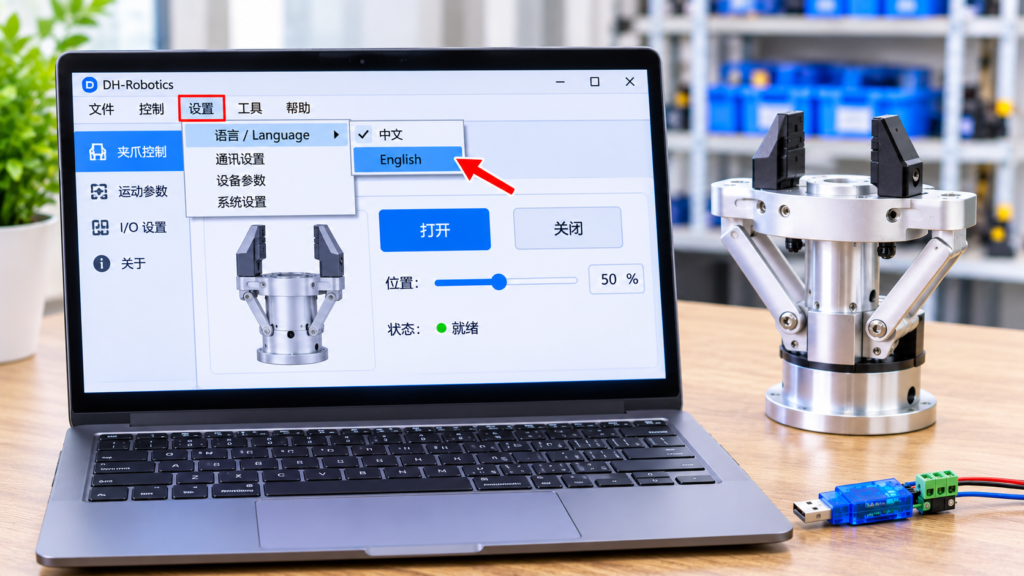

Introduction:
You connect your new gripper, open the control software, and the menus are in Chinese. You cannot tell which button initializes the gripper and which one changes its ID. One wrong click could change a setting you did not mean to touch.
This matters because gripper software controls real hardware. Force, speed, and gripper ID settings affect how your robot works. You need to read every label before you click.
In this guide, you will learn how to change DH-Robotics software to English, how to tell which setup you have, and what to do if the language option is missing.
Quick definition: Changing DH-Robotics software to English means switching the language of the gripper’s control program, or of the plugin that runs inside your robot’s host software, so menus, buttons, and error messages appear in English. Depending on your setup, you do this through a language option in the app, through the host software’s settings, or by installing an English release.
summary
- First, work out which software you are using: the standalone debugging tool, or a plugin inside robot software.
- For a plugin, change the language in the host software. The plugin usually follows it.
- For the standalone tool, check the menu bar, then try an English download from the maker.
- If text looks like random symbols, that is a Windows encoding problem, not a language setting.
- If nothing works, use a manual and a screenshot translator as a safe workaround.
First, Know Which “DH-Robotics Software” You Have
This is the step most guides skip. “DH-Robotics software” can mean more than one thing, and the fix is different for each.
DH-Robotics makes electric grippers such as the AG-95. The AG-95 product manual includes a section on installing and using debugging software. It covers installation, the user interface, connecting to the gripper, and gripper settings like ID and baud rate. That is the standalone debugging software.
There is also a second way to control the gripper. DH-Robotics’ operation guide for Dobot robots says to open DobotStudio Pro, go to the Dobot+ page, and install the DHGrip plugin. That is a plugin, and it lives inside someone else’s software.
In short, you are in one of three situations:
- You use the standalone debugging tool on a Windows PC.
- You use a DH-Robotics plugin inside host software such as DobotStudio Pro.
- Your text is unreadable or garbled because of a Windows setting.
The table below shows where to look first.
| Your setup | Where the language is controlled | What to try first |
|---|---|---|
| Standalone debugging software | The app itself, or the release you installed | Check the menu bar for a language option, then download the English release |
| Plugin in a host program (for example, DHGrip in DobotStudio Pro) | The host software’s language setting | Change the host language, then restart the program |
| Symbols or boxes instead of text | Windows regional settings | Fix the system locale for non-Unicode programs |
Do not skip this check. If you hunt for a language button in a plugin that has none, you will waste an hour.
How to Change DH-Robotics Software to English: Step by Step
Work through these steps in order. Stop when the text is in English.
Step 1: Look for a language option in the menu bar
Open the software and look across the top. Check menus named something like Settings, Options, Tools, Help, or View. Language switches often hide in one of these.
Some industrial software uses a small globe icon or a short label like “CN/EN.” Hover over any icon you cannot read. A tooltip may tell you what it does.
One honest limit: I cannot give you one exact menu path that is true for every DH-Robotics release. Versions differ, and the maker can move options between updates. If you see a language option, use it. If you do not, move to Step 2.
Step 2: Download the English release from the maker
If your copy has no language switch, you may have an older or region-specific build. Go to the official DH-Robotics website and look in the downloads or support area for your gripper model.
Match the model first. An AG-95 package is not the same as a package for another series. Download the English manual too, because it shows the screens you should see.
Then uninstall the old version and install the new one. Restart the PC after install. This clears many “the language did not change” problems.
Example: A small automation shop in Ohio bought a gripper through a distributor and installed the first package they found. The menus were in Chinese. They downloaded the package listed for their exact model from the maker’s site, reinstalled it, and the menu text matched the English manual.
Step 3: If you use a plugin, change the host software language
This is the most common fix for plugin users. A plugin that runs inside another program usually takes its language from that program.
In DobotStudio Pro, for example, DHGrip is installed from the Dobot+ page. Dobot’s plugin system supports several languages, including English, Chinese, Japanese, Korean, German, Spanish, and Russian. Plugin developers store text in separate language files. So when the host program switches to English, the plugin text can switch with it.
Here is the simple routine:
- Open the host software’s settings.
- Find the language option and pick English.
- Close the software fully.
- Reopen it and check the plugin panel.
There is one limit. If the plugin developer did not include English text for a label, that label can stay in Chinese. Plugin updates often fix this, so check for a newer plugin version.
Step 4: Fix garbled text with the Windows system locale
Sometimes the text is not Chinese at all. It looks like boxes, question marks, or random symbols. This is an encoding issue. Changing the app language will not fix it.
On Windows, open the Region settings and find the administrative language options. Look for the setting that controls language for non-Unicode programs. Set it to match the language the software was built for, restart the PC, and open the app again.
This can make Chinese text readable. It will not translate it. To get English, you still need Step 1, 2, or 3.
Step 5: Set your Windows display language to English
Some programs pick their language from Windows. If your PC is set to another language, the software may follow it.
On Windows 11, go to Settings, then Time & language, then Language & region. Choose English (United States) as the Windows display language. Sign out and back in when asked.
This helps only when the software checks Windows for its language. If the app has a hard-coded interface, nothing changes. That is normal, so do not keep repeating this step.
Step 6: Use a safe workaround while you wait for a fix
If none of the steps work, you can still work safely.
- Open the English manual next to the software and match each screen to its picture.
- Take a screenshot and run it through a translation app with a camera or image mode.
- Write down the translation of each button before you click anything.
Do not guess. A wrong click on a setting like gripper ID or baud rate can stop your gripper from talking to the robot. The AG-95 manual treats these as real settings with real effects, so treat them with care.
What to Do If the Language Option Is Missing
A missing language option usually means one of three things.
The software has only one language. Some small tools ship in one language. In that case, an English release or an updated build is the only real fix.
You have the wrong package. A package built for another model or region may have different language support. Re-download for your exact gripper model.
The option is in a place you did not expect. Check the menus on all sides of the window, and look for icons with no text. Also check the About or Help area, since version info there tells you what you installed.
When you contact support, send three things: the gripper model, the software version, and a screenshot. A clear message gets a faster answer. For example:
“Hello, I use the AG-95 gripper with software version X. The interface is in Chinese. Is there an English version or a language setting?”
That short note covers what a support team needs.
Common Mistakes to Avoid
Changing settings you cannot read. If you cannot read a label, stop. Translate it first.
Mixing up the gripper and the software. The gripper itself has no on-screen language. It uses indicator lights, and the manual explains what each light means. The language problem is always in the software on your PC or robot controller.
Skipping the restart. Many language changes only apply after you close the program fully and reopen it. Some also need a PC restart.
Using an unofficial download. A random file from a forum may be old, edited, or unsafe. Use the maker’s site or your distributor.
Expecting a full translation from the plugin. Plugins depend on the host software and the developer’s language files. A few labels may stay untranslated.
Pros and Cons of Each Fix
Each method has a tradeoff, so here is an honest summary.
- In-app language option: Fastest, but it only works if your version has one.
- English release download: Most reliable, but you must reinstall and match your exact model.
- Host software language: Easy for plugin users, but some plugin labels may stay in Chinese.
- Windows locale change: Fixes garbled text, but does not translate anything.
- Screenshot translation: Works for any software, but it is slower and not perfect for technical terms.
Frequently Asked Questions
Can I change DH-Robotics software to English without reinstalling it?
Yes, if your version has a language option. Check the menu bar first. If it has none, you will likely need an English release from the maker. Reinstalling is the most reliable fix when the interface is hard-coded in one language.
If you do reinstall, keep a note of your gripper’s ID and baud rate settings first. You may need them again after setup.
Why is my DH-Robotics software still in Chinese after I changed the language?
The program probably needs a full restart. Close it completely, reopen it, and check again. If it is a plugin, the host software controls the language, and a few labels may be missing English text.
An older build is another common cause. Download the latest version for your exact gripper model.
Does the DHGrip plugin follow the DobotStudio Pro language?
In most cases, yes. DHGrip runs inside DobotStudio Pro, and plugins in that system store their text in separate language files, so they can switch with the host software. Change the host language, restart, and check the plugin panel.
If a label stays in Chinese, the plugin may lack an English entry for it. Updating the plugin can help.
Is there an English manual for DH-Robotics grippers?
Yes. DH-Robotics publishes English product manuals, such as the AG-95 manual, with a section on installing and using the debugging software. The manual shows the screens, buttons, and settings in English, which makes a good guide while you use the software.
Download the manual for your exact model from the maker’s site or your distributor.
What should I do if the text looks like random symbols?
This is usually an encoding problem, not a language setting. Set the Windows system locale for non-Unicode programs to match the software, restart the PC, and reopen the app. Then use an English release to get readable English text.
The locale fix makes text readable. It does not translate it.
Is it safe to use the software while I wait for an English version?
It is safe if you only change settings you understand. Use the English manual, translate each screen with a screenshot tool, and avoid changing gripper ID, baud rate, or other core settings until you are sure.
Basic open and close tests are usually low risk. Configuration changes are not.
Final Thoughts
A Chinese interface can feel like a wall, but the fix is usually simple once you know your setup. Identify whether you use the standalone tool or a plugin. Try the in-app language option, then the host software, then an English download.
If you remember one thing about how to change DH-Robotics software to English, make it this: match the fix to the setup, and never click a setting you cannot read.
If you want to go further, bookmark the manual for your gripper model. It is the best reference when a label is unclear.
About the author: James Anderson is a software and automation writer based in the US. He explains technical tools in plain English, with a focus on setup steps that work the first time. James tests each process, notes where results vary by version, and writes for engineers, hobbyists, and small shops who want clear answers without jargon.