

Introduction:
You want to try Linux, but you don’t want to wipe your Windows laptop. Or you need to test a strange app, but you don’t trust it on your main computer. These are common problems, and they can be risky to solve the wrong way.
That’s where virtualization helps. It lets you run a second computer inside your current one, with no extra hardware and no changes to your real system.
In this guide, you’ll learn what VirtualBox is, what it can do, how to set it up, and where it falls short.
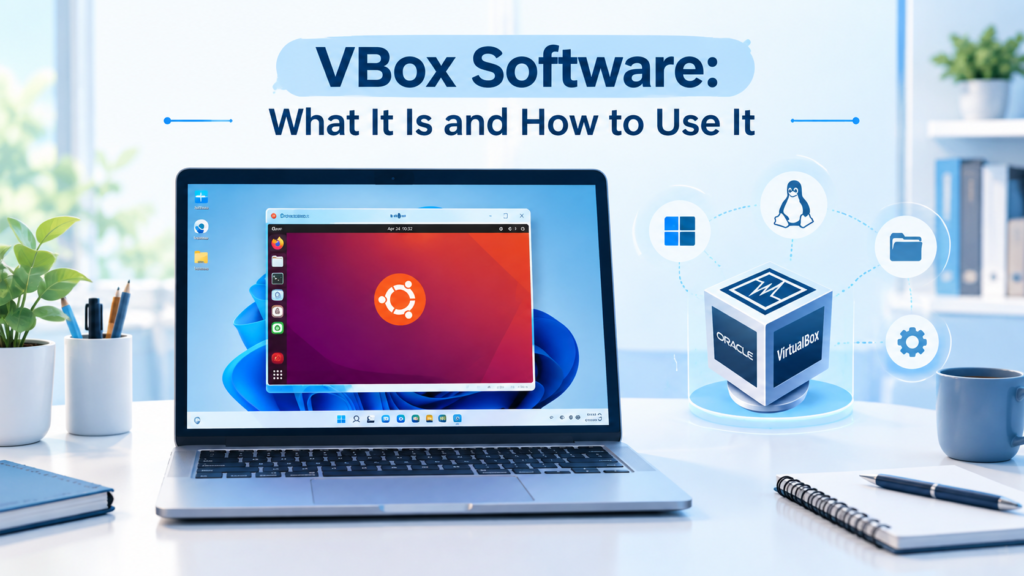
What is vbox software? VBox software, better known as Oracle VirtualBox, is a free virtualization program that lets you run one operating system inside another on the same computer. For example, you can run Ubuntu Linux inside Windows 11 as a normal window. Each virtual machine gets its own virtual hard drive, memory, and settings, so nothing you do inside it touches your main system.
summary
- VBox software is free, runs on Windows, macOS, and Linux, and is great for beginners.
- You create a virtual machine (VM), load an ISO file, and install an operating system as you normally would.
- Snapshots let you undo mistakes in seconds.
- It’s best for learning, testing, and light work. It’s not ideal for heavy gaming or 3D design.
- The core program is open source, but the optional Extension Pack has its own license rules.
How VirtualBox Works
Your computer is called the host. The operating system you run inside it is called the guest. VirtualBox sits between them as a hypervisor, a program that shares your real hardware with the guest.
Here’s a simple example. Say you have a laptop with 16 GB of RAM and 8 CPU cores. You can give a VM 4 GB of RAM and 2 cores. The VM thinks it’s a real computer with those specs. Your host system keeps the rest.
Everything the VM stores lives in one file on your disk, called a virtual disk image. Delete the file, and the VM is gone. Your real files stay untouched.
What Can You Do With VBox Software?
Most people use it for one of these jobs.
Learn a new operating system. A student can install Ubuntu or Fedora in a VM and practice Linux commands. If something breaks, they delete the VM and start over.
Test software safely. Got a file you’re unsure about? Open it inside a VM. If it misbehaves, your main system stays clean. Keep in mind that this is not a perfect shield, which I’ll explain in the limits section.
Run old programs. Some business apps only work on older Windows versions. A VM can run them without keeping an old PC around.
Practice for work. IT learners build small practice networks with several VMs. A web developer can test a site on Windows while working on a Mac.
Try before you switch. Thinking of moving from Windows to Linux? Run Linux in a VM for a few weeks first.
System Requirements
VirtualBox is light, but your VMs need real resources. Here’s what I’d suggest as a realistic starting point:
- RAM: 8 GB minimum on the host. 16 GB is much more comfortable.
- CPU: A modern 64-bit processor with virtualization support (Intel VT-x or AMD-V).
- Storage: At least 25 GB free per VM. SSDs make a huge difference in speed.
- Host OS: Windows, macOS, Linux, or Oracle Solaris.
One common snag: virtualization is sometimes turned off in the BIOS or UEFI settings. If VirtualBox says your CPU doesn’t support it, check that setting first. It’s usually named “Intel Virtualization Technology” or “SVM Mode.”
Note for Apple Silicon Macs: VirtualBox support for M-series Macs is newer and more limited than on Intel machines. It focuses on ARM guest systems rather than regular Windows or Linux for Intel. If you use an M1, M2, or M3 Mac, check the current release notes before you commit. Tools like UTM or Parallels may fit better.
How to Set Up Your First Virtual Machine
Here’s the basic process. It takes about 20 minutes, not counting download time.
1. Download VirtualBox. Get it from the official VirtualBox website. Avoid third-party download sites, which often bundle unwanted extras.
2. Install it. Run the installer and accept the defaults. On Windows, it may briefly disconnect your network during setup. That’s normal.
3. Get an ISO file. An ISO is a disk image of an operating system. For example, download the Ubuntu Desktop ISO from the Ubuntu website. It’s free.
4. Create a new VM. Click “New,” name your VM, and select the ISO file. Pick the correct OS type so VirtualBox applies good defaults.
5. Set resources. A good starting point for Ubuntu is 4 GB of RAM, 2 CPU cores, and a 25 GB virtual disk.
6. Start it. Click “Start.” The VM boots from the ISO, and you install the system just like on a real PC.
7. Install Guest Additions. Once the guest OS is running, install Guest Additions from the Devices menu. This adds better screen resizing, a shared clipboard, and shared folders. Without it, the VM feels clunky.
Features Worth Knowing
Snapshots
A snapshot saves the exact state of your VM. Take one before you try something risky, like installing a driver or changing system settings. If it goes wrong, restore the snapshot and you’re back in seconds.
Real example: a student practicing server setup takes a snapshot before each lab. When a command breaks the system, they roll back and try again. No reinstall needed.
Shared Folders
You can share a folder between your host and guest. Drop a file on your host, and it appears inside the VM. This is handy for moving code, documents, or downloads.
Network Modes
VirtualBox gives you several ways to connect a VM to the network. Each fits a different need.
| Mode | What It Does | Best For |
|---|---|---|
| NAT | VM shares your host’s internet; hidden from the network | Everyday browsing and downloads |
| Bridged | VM gets its own address on your network | Running servers you want to reach from other devices |
| Host-only | VM talks only to your host | Private testing |
| Internal | VMs talk only to each other | Practice labs and network learning |
For most beginners, NAT (the default) works fine.
Clones and Exports
You can clone a VM to make a copy. You can also export it as a file and move it to another computer. Teachers often use this to hand every student the same ready-made setup.
Pros and Cons
What works well:
- Free for personal use, and the core software is open source
- Runs on all major desktop systems
- Easy to learn
- Good snapshot and cloning tools
- Large community with plenty of help online
What doesn’t:
- Graphics performance is weak. Modern games and 3D design software run poorly.
- It’s usually slower than paid tools like VMware Workstation or Parallels on the same hardware.
- Apple Silicon support is still limited.
- A VM isn’t a perfect security wall. Rare bugs can let malware escape, so don’t treat it as a fully safe place to run dangerous files.
- USB device support can be tricky, and some features require the Extension Pack.
VirtualBox vs. Other Options
VBox software isn’t the only choice. Here’s a quick view of how the main options compare.
| Tool | Cost | Best For | Notes |
|---|---|---|---|
| VirtualBox | Free | Beginners, students, Linux testing | Works on Windows, Mac, Linux |
| VMware Workstation Pro | Free for personal use; paid for business | Smoother performance | Windows and Linux hosts |
| Hyper-V | Built into Windows Pro | Windows users who want a native tool | Not on Windows Home by default |
| Parallels | Paid subscription | Mac users | Strong on Apple Silicon |
| UTM | Free (App Store version is paid) | Apple Silicon Macs | Based on QEMU |
Pricing and license terms change, so check each vendor’s site before you decide.
A Note on Licensing
This is where many guides go quiet, so here’s the clear version. The main VirtualBox program is open source under the GPL. The Extension Pack is different. It adds features like USB 2.0 and 3.0 support and disk encryption, and it uses a separate Oracle license.
In short, the Extension Pack is free for personal use, education, and evaluation. A company using it commercially, such as a US business with employees running it on work computers, generally needs a paid license from Oracle. If you’re using VirtualBox at work, ask your IT team or read the license text first.
Common Problems and Quick Fixes
“VT-x is not available.” Turn on virtualization in your BIOS or UEFI. On Windows, also check that features like Hyper-V or Windows Hypervisor Platform aren’t blocking it.
VM is slow. Give it more RAM and CPU cores, but never more than half of what your host has. Move the virtual disk to an SSD if you can.
Screen is stuck at a small size. Install Guest Additions.
Can’t see a USB device. Install the Extension Pack, then add the USB device in the VM settings.
Windows 11 won’t install. Windows 11 expects TPM 2.0 and Secure Boot. Recent VirtualBox 7.x versions support both, so update the software first and enable those options in the VM settings.
Smart Tips From Real Use
- Always take a snapshot before big changes.
- Keep VMs on an SSD with enough free space.
- Close unused apps on your host while a VM runs.
- Update VirtualBox regularly. New versions fix bugs and add guest OS support.
- Name your VMs clearly, like “Ubuntu-24-Practice,” so you don’t lose track.
Frequently Asked Questions
Is vbox software free to use?
Yes, for most people. The core VirtualBox program is free and open source. The Extension Pack is free for personal, educational, and evaluation use. Businesses that use the Extension Pack commercially generally need a paid license from Oracle, so check the terms first.
Is VirtualBox safe to install?
Yes, when you download it from the official VirtualBox website. It’s a long-established program from Oracle. The risk usually comes from third-party download sites that add unwanted software. Always use the official source and verify you’re on the right page.
Can VirtualBox run Windows on a Mac?
It depends on your Mac. On Intel Macs, VirtualBox can run Windows and Linux. On Apple Silicon Macs (M1 and later), support is limited to ARM-based guest systems, so a regular Windows ISO won’t work the same way. Parallels or UTM often suit these Macs better.
Does VirtualBox slow down my computer?
It uses real resources, so your host may feel slower while a VM runs. The effect depends on how much RAM and CPU you give the VM. With 16 GB of RAM and an SSD, most people notice little slowdown during normal tasks.
What is the difference between VirtualBox and VMware?
Both run virtual machines. VirtualBox is free, simple, and works on more host systems. VMware Workstation usually offers smoother performance and better 3D support. VMware also has a free personal-use option now, but its terms differ, so compare both before choosing.
Final Thoughts
VBox software is one of the easiest ways to explore new operating systems without risking your main computer. It’s free, flexible, and backed by a big community. It won’t replace a powerful workstation for heavy graphics, but for learning, testing, and light daily use, it does the job well.
Start small. Create one VM, take a snapshot, and break something on purpose. That’s the fastest way to learn how it all works.
Ready to try it? Download the latest version from the official site, grab a free Ubuntu ISO, and build your first VM this weekend. If you get stuck, the official VirtualBox forum is a helpful place to ask.
Also read this: