

Table of Contents
ToggleIntroduction:
Solid-state drives (SSDs) have become the standard storage option for modern laptops and desktop computers. They are faster, quieter, and more reliable than traditional hard drives. However, many people assume that an SSD will always work perfectly until it suddenly fails.
The truth is that every SSD has a limited number of write cycles. While most drives last for many years, checking their condition regularly can help you spot problems early, protect important files, and avoid unexpected hardware failure.
If you’ve ever wondered how to check SSD health, you’re in the right place. This guide explains the easiest ways to monitor your drive, understand what the results mean, and know when it’s time to back up your data or replace your storage device.
What Is SSD Health?
SSD health refers to the overall condition and remaining lifespan of a solid-state drive. It is measured using SMART (Self-Monitoring, Analysis, and Reporting Technology) data, which tracks wear, errors, temperature, and other performance indicators. Monitoring SSD health helps you detect potential problems early and reduce the risk of losing important files.
summary
- SSDs wear out gradually over time.
- Windows includes basic tools to check drive status.
- Manufacturer utilities provide the most accurate health information.
- SMART data shows wear level, errors, and estimated lifespan.
- Health above 90% is generally excellent.
- Always keep backups, even if your SSD reports good health.
Why Checking SSD Health Matters
Many users only think about storage when their computer becomes slow. Unfortunately, SSD problems can develop silently before obvious symptoms appear.
Checking your SSD regularly can help you:
- Prevent unexpected data loss.
- Identify failing hardware before it stops working.
- Monitor wear caused by heavy workloads.
- Keep your computer running smoothly.
- Decide whether it’s time for an upgrade.
Think of it like checking your car’s oil level. Everything may seem fine today, but regular inspections help prevent expensive problems later.
For most home users, checking the drive every two or three months is enough.
How SSD Health Is Measured
Unlike traditional hard drives that often fail because of moving parts, SSDs use flash memory cells. These memory cells slowly wear out after many write and erase operations.
Instead of measuring physical damage, SSD health focuses on indicators such as:
- Remaining lifespan
- Total data written
- Read and write errors
- Operating temperature
- Reallocated memory blocks
- Overall SMART status
These values are collected automatically through SMART technology and can be viewed using Windows commands or specialized software.
Method 1: Check SSD Health Using Windows Command Prompt
One of the quickest ways to see your drive’s basic condition is through Command Prompt. While it doesn’t provide detailed statistics, it gives a simple health status.
Step 1
Press Windows + S and search for Command Prompt.
Step 2
Right-click it and choose Run as administrator.
Step 3
Type the following command:
wmic diskdrive get statusStep 4
You’ll see a result similar to:
StatusOKIf another status appears, such as Pred Fail, you should back up your important files immediately and investigate further using dedicated SSD software.
Pros
- Built into Windows
- Fast and simple
- No software installation
Cons
- Shows only basic information
- Doesn’t display remaining lifespan
- Doesn’t explain wear level
Method 2: Use Windows Settings (Windows 11)
Windows 11 includes a simple storage health feature that many users overlook.
To find it:
- Open Settings.
- Select System.
- Choose Storage.
- Open Advanced Storage Settings.
- Select Disks & Volumes.
- Click your SSD.
- Choose Properties.
Depending on your system, Windows may display:
- Estimated remaining life
- Current temperature
- Available spare capacity
- Overall drive status
This feature is convenient because it doesn’t require additional software.
However, older Windows versions may not provide this information.
Method 3: Check SSD Health with Manufacturer Software
If you’re looking for the most reliable way to understand your drive’s condition, the manufacturer’s own software is usually the best choice.
These tools communicate directly with the SSD firmware and often provide more accurate health data than generic applications.
Popular examples include:
- Samsung Magician
- Crucial Storage Executive
- WD Dashboard
- Kingston SSD Manager
- Solidigm Storage Tool
These applications commonly display:
- Health percentage
- Remaining lifespan
- Firmware version
- Drive temperature
- Total bytes written
- Performance benchmarks
- Firmware update notifications
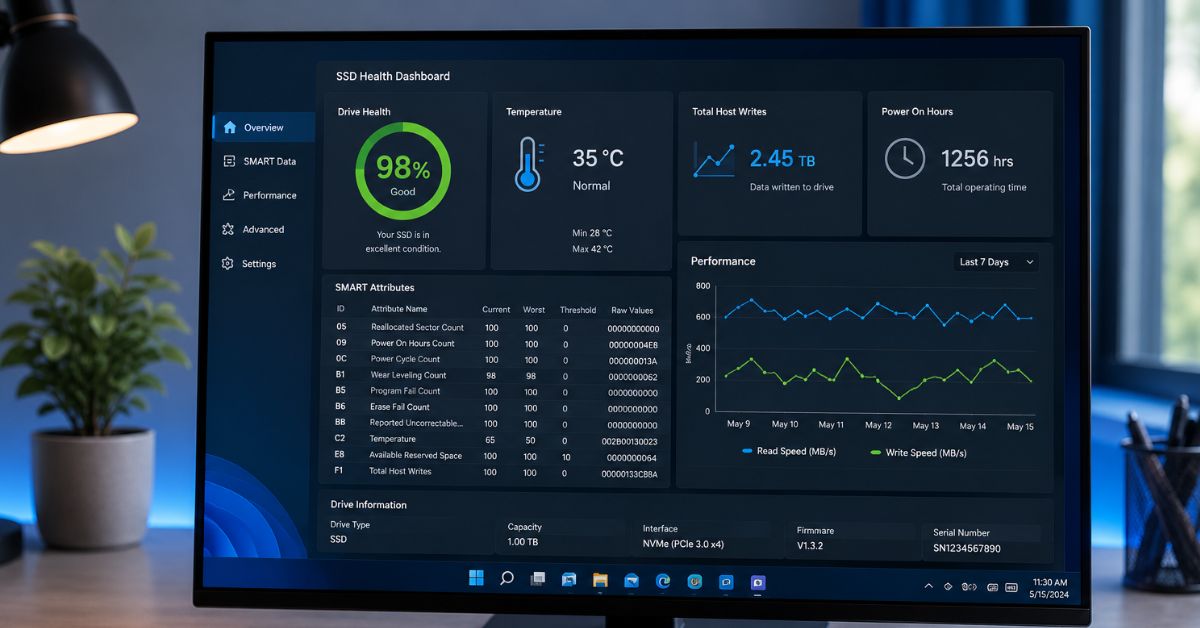
For example, if you own a Samsung SSD, Samsung Magician might report that your drive is at 98% health, has written 22 TB of data, and is operating at a safe temperature. This makes it much easier to understand your SSD’s condition than a simple “OK” message.
Understanding SSD Health Percentage
Many monitoring tools display a health score as a percentage.
Here’s what those numbers generally mean:
| SSD Health | Meaning |
|---|---|
| 100–95% | Excellent condition |
| 94–80% | Healthy with normal wear |
| 79–60% | Moderate wear; continue monitoring |
| 59–40% | Heavy wear; keep reliable backups |
| Below 40% | Plan for replacement soon |
Remember that a lower percentage doesn’t always mean immediate failure. Many SSDs continue working for years even after noticeable wear, but frequent backups become much more important.
Likewise, a drive showing 100% health can still fail unexpectedly because electronic components, controllers, or power issues aren’t always reflected in wear statistics.
Method 4: Check SSD Health with CrystalDiskInfo
One of the most trusted free tools for checking SSD condition is CrystalDiskInfo. It works with most SSD brands and presents SMART data in a simple, easy-to-read format.
After installing the software, open it and you’ll see information such as:
- Overall health status
- Health percentage
- Current temperature
- Power-on hours
- Total host writes
- Firmware version
- SMART attributes
For example, if the program shows:
- Health: 99%
- Temperature: 35°C (95°F)
- Status: Good
Your SSD is in excellent condition.
If the health percentage drops significantly or the status changes to Caution, review your data backup strategy and monitor the drive more closely.
Pros
- Free for personal use
- Supports most SSD brands
- Easy-to-read interface
- Displays detailed SMART information
Cons
- More technical than Windows tools
- Some SMART values may confuse beginners
Method 5: Check SSD Health Using PowerShell
PowerShell offers another built-in option for viewing storage information.
Open PowerShell as Administrator and run:
Get-PhysicalDisk- Drive name
- Operational status
- Health status
- Media type
On some systems, you may see results like:
- HealthStatus: Healthy
- OperationalStatus: OK
While PowerShell doesn’t provide detailed wear information, it’s useful for confirming that Windows recognizes your SSD as healthy.
What Is SMART Data?
SMART stands for Self-Monitoring, Analysis, and Reporting Technology.
Think of SMART as your SSD’s built-in health monitor. It records important information about the drive throughout its life.
Some common SMART values include:
Temperature
High temperatures can shorten SSD lifespan.
For most consumer SSDs:
- Under 50°C (122°F) is excellent.
- 50–70°C (122–158°F) is acceptable during heavy workloads.
- Above 70°C (158°F) should be investigated.
Total Host Writes
This shows how much data has been written to the SSD over its lifetime.
Heavy workloads such as video editing or virtual machines naturally increase this number faster than everyday browsing.
Power-On Hours
This indicates how long the SSD has been powered on.
A higher number doesn’t automatically mean the drive is failing—it simply reflects usage over time.
Remaining Life
Many SSD manufacturers estimate how much usable lifespan remains.
For example:
- 99% = Almost new
- 92% = Healthy
- 80% = Normal wear
- 60% = Moderate aging
- 30% = Consider planning a replacement
Signs Your SSD May Be Failing
Even if software reports good health, it’s important to watch for warning signs.
Common symptoms include:
- Frequent system crashes
- Files becoming corrupted
- Programs refusing to open
- Extremely slow file transfers
- Random blue screen errors
- Windows failing to boot
- Drive disappearing from File Explorer
- Read or write errors
If several of these issues occur together, back up your important files immediately.
SSD Health vs SSD Performance
Many people confuse health with speed.
A drive can still be healthy while feeling slow.
Common reasons include:
- Nearly full storage
- Outdated firmware
- Background applications
- Windows indexing
- Insufficient RAM
- Thermal throttling
Likewise, a fast SSD may still have significant wear after years of heavy use.
Always evaluate both health and performance separately.
Tips to Keep Your SSD Healthy
While no SSD lasts forever, a few good habits can help maximize its lifespan.
Leave Free Space
Try to keep at least 15–20% of the drive free.
This gives the SSD controller room to manage data efficiently.
Enable TRIM
Windows usually enables TRIM automatically.
TRIM helps the SSD clean unused memory blocks, improving long-term performance.
Keep Firmware Updated
Manufacturers occasionally release firmware updates that improve:
- Stability
- Performance
- Compatibility
- Reliability
Only update firmware using the official utility provided by your SSD manufacturer.
Avoid Unnecessary Writes
Modern SSDs are durable, but reducing unnecessary write activity can still extend their lifespan.
Examples include:
- Avoid repeatedly copying massive files unless necessary.
- Limit unnecessary benchmarking.
- Reduce excessive logging for advanced workloads.
For everyday users, this is rarely a major concern.
Monitor Temperature
Heat affects every storage device.
If your SSD regularly exceeds safe temperatures:
- Improve airflow.
- Clean dust from the PC.
- Ensure laptop vents remain unobstructed.
Keep Regular Backups
Even a healthy SSD can fail unexpectedly due to power loss, controller issues, or physical damage.
Follow the 3-2-1 backup rule whenever possible:
- Three copies of important files
- Two different storage types
- One off-site or cloud backup
Common Mistakes to Avoid
Many SSD owners unknowingly reduce drive performance or ignore early warning signs.
Avoid these mistakes:
- Ignoring SMART warnings
- Filling the SSD to 100% capacity
- Installing software from unknown sources to check drive health
- Running unnecessary benchmarks every day
- Assuming a new SSD never needs monitoring
- Waiting until the computer won’t boot before creating backups
Regular checks take only a few minutes and can prevent major headaches later.
Frequently Asked Questions
How often should I check my SSD health?
Checking your SSD every two to three months is enough for most users. If your computer stores important work files or runs demanding applications, checking it monthly provides additional peace of mind.
Regular monitoring helps you notice gradual wear before it becomes a serious problem.
What SSD health percentage is considered good?
Anything above 90% is generally considered excellent for a consumer SSD. A lower percentage doesn’t necessarily mean immediate failure, but it does indicate normal wear over time.
Continue monitoring the drive and maintain reliable backups as the health percentage decreases.
Can an SSD fail without warning?
Yes. Although SMART monitoring is useful, it cannot predict every type of hardware failure. Power issues, controller failures, and electronic faults may occur suddenly.
That’s why backups remain essential even when your SSD appears healthy.
Is CrystalDiskInfo safe to use?
Yes. CrystalDiskInfo is widely trusted for reading SMART information without modifying your drive. It only displays health data and does not change your SSD settings.
Download it from the official project website to avoid unofficial copies.
Does Windows have a built-in SSD health checker?
Yes. Windows includes basic tools such as Command Prompt, PowerShell, and storage settings. These can confirm whether a drive appears healthy but usually provide less detail than manufacturer software.
For deeper insights, use your SSD manufacturer’s utility.
Should I replace an SSD at 80% health?
Not necessarily. An SSD with 80% health is typically still in good working condition. Continue monitoring it and keep current backups.
Replacement becomes more important if health declines rapidly or the drive begins showing errors.
Conclusion
Knowing how to check SSD health is one of the simplest ways to protect your files and extend the life of your computer. Whether you use Windows’ built-in tools, PowerShell, CrystalDiskInfo, or your SSD manufacturer’s software, regular monitoring helps you identify potential issues before they become serious.
Remember that no health check can guarantee an SSD will never fail. The smartest approach is to combine regular monitoring with good maintenance habits and reliable backups. A few minutes every couple of months can save hours of frustration and protect your valuable data.
Also read this: