
Introduction:
You use SaaS every day, even if you have never heard the term. Your email, your video calls, and your online banking dashboard all run on it. But when a work tool asks you to “subscribe,” it helps to know what you are really buying.
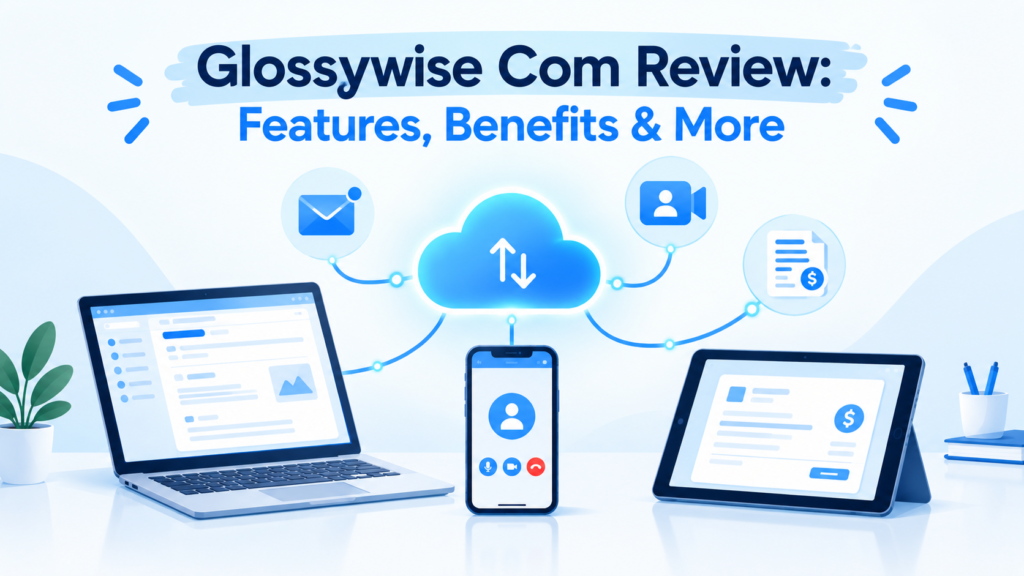
This guide on glossywise com explains how SaaS works, what it costs, where it falls short, and how to choose a tool without wasting money.
What Is SaaS?
Software as a Service (SaaS) is a way of using software over the internet instead of installing it on your computer. A company hosts the app, keeps it updated, and secures the servers. You log in through a browser or app and pay a monthly or yearly fee. Gmail, Zoom, and QuickBooks Online are common examples, and many offer free plans.
The key idea is simple: you rent access instead of buying a copy. You never manage servers, patches, or backups yourself.
summary
- SaaS is cloud-based software you access online and pay for by subscription.
- It saves setup time and upfront cost, and it updates itself.
- The downsides are ongoing fees, internet dependence, and less control.
- Before you buy, check pricing, security, integrations, and how to export your data.
How SaaS Works Behind the Scenes
When you open a SaaS app, you are talking to software that runs on someone else’s servers. Those servers sit in large data centers run by cloud hosting providers such as Amazon Web Services, Microsoft Azure, or Google Cloud.
Most SaaS products use a multi-tenant setup. That means many customers share the same core application, but each customer’s data stays separate. Think of an apartment building. Everyone shares the plumbing and the roof, but each family has its own locked door.
Here is what happens in a typical session:
- You log in with your email and password.
- The provider checks your account and plan.
- The app loads in your browser, and your data is pulled from the provider’s database.
- Every change you make is saved on their servers, not on your laptop.
That last point matters. If your laptop dies, your work is still there. In our software guides on glossywise com, we point to this as one of the biggest everyday wins for beginners.
Many SaaS tools also offer an API (application programming interface). An API lets two apps talk to each other. For example, your invoicing tool can send data to your accounting tool without you retyping anything.
SaaS vs. Traditional Software
Before SaaS, you bought software in a box or downloaded a big installer. You paid once, installed it, and updated it yourself. This older model is often called on-premise or “installed” software.
| Factor | SaaS | Traditional (Installed) Software |
|---|---|---|
| Cost model | Monthly or yearly subscription | Large one-time license fee |
| Setup | Sign up and log in | Install and configure |
| Updates | Automatic | Manual, often paid |
| Access | Any device with internet | Usually one computer or network |
| Data storage | Provider’s cloud | Your own device or server |
| Customization | Limited to settings offered | Often deeper control |
| Works offline | Sometimes | Usually yes |
Neither model is always better. If you need deep customization or must work offline in a locked-down environment, installed software can still make sense. For most small teams and solo workers, SaaS is the easier starting point.
Common Types of SaaS Tools
SaaS covers almost every kind of work. Here are the main groups, with real examples:
- Communication: Slack, Zoom, Microsoft Teams
- Productivity: Google Workspace, Microsoft 365, Notion
- Accounting and finance: QuickBooks Online, Xero
- Customer management (CRM): Salesforce, HubSpot
- File storage: Dropbox, Box, Google Drive
- Design and marketing: Canva, Mailchimp
You may also hear about IaaS (infrastructure as a service) and PaaS (platform as a service). These are related cloud models. IaaS gives you raw servers to rent. PaaS gives developers a place to build and run apps. SaaS is the finished product that regular users log into.
A Real-World Example
Imagine a five-person design studio in Austin, Texas. Ten years ago, they would have bought a server, hired an IT contractor, and paid for accounting software licenses upfront. That could cost several thousand dollars before day one.
Today, the same studio signs up for Google Workspace for email and files, Slack for chat, and QuickBooks Online for billing. Setup takes an afternoon. They pay a monthly fee per person and can add a sixth teammate in minutes.
When the owner travels to London for a client meeting, everything works from her hotel laptop. That flexibility is why SaaS became the default for small businesses.
The Main Benefits of SaaS
Lower upfront cost. You skip big license fees and hardware purchases. You pay as you go.
Fast setup. Most tools work within minutes. There is often a free trial so you can test before paying.
Automatic updates. The provider fixes bugs and adds features. You do not install anything.
Easy scaling. Need more seats? Add users. Need fewer? Remove them at renewal.
Work from anywhere. You only need a browser and an internet connection.
Built-in backups. Reputable providers copy your data across multiple locations, so one broken device does not wipe out your work.
The Real Drawbacks You Should Know
SaaS is useful, but it is not perfect. Here are the limits, stated plainly.
Costs never end. A tool that costs $15 per user per month adds up to $180 per user per year. Over five years, a one-time license can be cheaper. Do the math for your case.
You depend on the internet. If your connection drops, some tools stop working. Others offer limited offline modes, but not all.
You depend on the vendor. If the company raises prices, changes features, or shuts down, you have to adapt. This is called vendor lock-in when moving away becomes hard.
Less control. You can only change what the provider allows. Custom needs may not fit.
Data sits with someone else. You must trust the provider’s security. That is not automatically bad, since large providers often have stronger security than a small office. But it is a real trust decision.
How Much Does SaaS Cost?
Pricing varies widely. Many popular team tools land somewhere between $8 and $30 per user per month, while specialized business platforms can cost far more. Always check the vendor’s current pricing page, since plans change often.
Common pricing models include:
- Per-user pricing: You pay for each person with an account.
- Tiered pricing: Plans like Basic, Pro, and Enterprise unlock more features.
- Usage-based pricing: You pay based on what you use, such as emails sent or storage used.
- Freemium: A free plan with limits, and paid upgrades.
Watch for hidden costs. Some vendors charge extra for extra storage, advanced support, or connecting to other apps. When we review tools for readers of glossywise com, we always check what the “free” plan actually includes, because limits can be tighter than they first appear.
A good habit: put all your subscriptions in one spreadsheet with the renewal date and price. Small charges pile up quietly.
Is SaaS Secure?
Usually yes, if you choose carefully and use it well. Big providers spend heavily on encryption, monitoring, and staff. But you still play a part.
Look for these basics:
- Data encryption in transit and at rest
- Two-factor authentication (2FA) so a stolen password is not enough
- Uptime commitments in a service level agreement (SLA), such as 99.9%
- Clear backup and recovery policies
- Independent audits, such as SOC 2 reports
On your side, use strong, unique passwords and turn on 2FA. Remove accounts for people who leave your team. Most SaaS breaches come from weak passwords or forgotten accounts, not from the provider’s servers being “hacked.”
If you serve customers in the UK or EU, check how the vendor handles GDPR. Canadian businesses should look at PIPEDA rules and whether data is stored in Canada or the US. Ask about data location before you sign.
How to Choose the Right SaaS Tool
Here is a simple checklist you can use for any purchase. It is the same approach we use in our comparisons on glossywise com.
- Define the problem. Write one sentence, such as “We need to send invoices and track payments.” Do not shop for features you will not use.
- Set a budget. Include the total yearly cost, not just the monthly price.
- Try the free trial. Use real tasks, not just the demo data.
- Check integrations. Make sure it connects with the tools you already use.
- Review security. Look for 2FA, encryption, and a clear privacy policy.
- Test support. Send a question during the trial. See how fast and helpful the reply is.
- Confirm you can leave. Find out how to export your data and what format it comes in.
- Read recent reviews. Look at sites like G2 or Capterra, and read the mid-range reviews, not just the five-star ones.
If two tools score close, pick the one that is easier for your team to learn. A tool nobody uses is wasted money, no matter how good the features are.
Common Mistakes Beginners Make
Buying the biggest plan. Start small. You can almost always upgrade later.
Ignoring renewal dates. Many annual plans renew automatically, often at a higher price. Set a calendar reminder 30 days before.
Using too many tools. Five apps that do overlapping jobs create confusion. Try to consolidate.
Skipping the export test. Before you commit, export a sample of your data. Make sure you can actually get it out.
Sharing one login. It breaks security and makes it impossible to see who did what. Pay for separate seats.
Readers who follow our software guides on glossywise com often tell us the renewal reminder alone saved them real money.
Frequently Asked Questions
What does SaaS stand for?
SaaS stands for Software as a Service. It describes software that a company hosts online and that you access through a browser or app, usually for a monthly or yearly fee. You do not install or maintain it yourself. The provider handles updates, servers, and security.
What is an example of SaaS?
Gmail, Zoom, Slack, Dropbox, and Salesforce are all SaaS products. You log in online, the company runs the servers, and you pay a subscription or use a free plan. If you use a work tool through a web browser without installing anything, it is very likely SaaS.
Is SaaS the same as cloud computing?
Not exactly. Cloud computing is the broad idea of using remote servers over the internet. SaaS is one type of cloud service. Others include IaaS (rented infrastructure) and PaaS (development platforms). SaaS is the version regular users see, because it is the finished app you log into.
What is the difference between SaaS and traditional software?
Traditional software is installed on your device or server, and you often pay once. SaaS runs on the provider’s servers, and you pay a subscription. SaaS updates itself and works on many devices. Traditional software may offer more control and offline use but needs more manual upkeep.
Is SaaS worth it for a small business?
For most small businesses, yes. SaaS lowers upfront cost, needs little IT knowledge, and grows with your team. It is not always cheapest over many years, so compare total cost. As NIST notes in its cloud guidance, the model works best when you match services to real needs. On glossywise com, we suggest starting with free trials to test fit.
Final Thoughts
SaaS is simple at its core. You rent software that lives online, and the provider takes care of the hard technical parts. That makes it a strong choice for beginners, freelancers, and small teams.
Still, “easy” does not mean “risk-free.” Watch your total costs, protect your accounts, and make sure you can export your data. Pick one problem, test two or three tools, and choose the one your team will actually use.
Ready to take the next step? Make a quick list of the software you already pay for, then use the checklist above to see what you can simplify. If you would like a walkthrough for a specific tool category, let me know and I can cover it in a follow-up guide.
About the Author: James Anderson is a software and technology writer who specializes in explaining business tools in plain English. He helps beginners, freelancers, and small teams choose software with confidence and avoid costly mistakes. His guides focus on real examples, honest pros and cons, and practical steps readers can use right away, without jargon or sales pressure.
Content Review Note: Review and update this article every 6 to 12 months. SaaS pricing, features, and security rules change often, so check tool names, price ranges, and external links each time.